

Instead of repeatedly comparing an IRS CP2000 notice with scattered tax records, use your IRS online account to gather transcripts, build a documented response, and submit it through the channel printed on your notice. Your account supplies supporting records; it does not automatically connect those records to a CP2000 response or submit a dispute.
- An IRS CP2000 notice proposes changes; it is not a bill or a completed audit.
- Use IRS online account transcripts to investigate discrepancies, not as a substitute for your response.
- The Rutter Organization provides tax resolution services for individuals and businesses seeking professional help.
- Submit your signed response through the notice’s authorized channel and keep proof of submission.
Why this matters
A CP2000 compares information reported by employers, banks, and other payers with your tax return. A mismatch does not automatically mean the IRS calculation is correct: missing investment basis, corrected information returns, or income reported elsewhere on your return can change the answer.
Your response must explain the mismatch, not merely show that you accessed your account. For professional assistance, The Rutter Organization serves individuals and businesses through tax resolution services.
For a notice received in 2026, use the tax period printed on the notice—not the current calendar year—to select records. Keep the proposed adjustment, your evidence, and your submission receipt together so you can reconstruct exactly what you sent.
Before you start
- Access and records: Have your complete CP2000 notice, the filed return for the notice’s tax period, relevant information returns, and access to your IRS Individual Online Account. Account registration requires identity verification; do not wait for account access before addressing a deadline.
- Deadline and submission instructions: Find the response date, notice reference, and authorized response channels. CP2000 notices generally request a response within 30 days, but the date on your notice controls. Request additional time using the notice’s contact instructions when necessary; do not assume it is granted.
- The gotcha: An online account and the IRS Document Upload Tool are different services. Upload instructions or an access code supplied with your notice determine whether that response route applies. Logging in, viewing a notice, or downloading a transcript does not constitute a response.
Gather your IRS account records
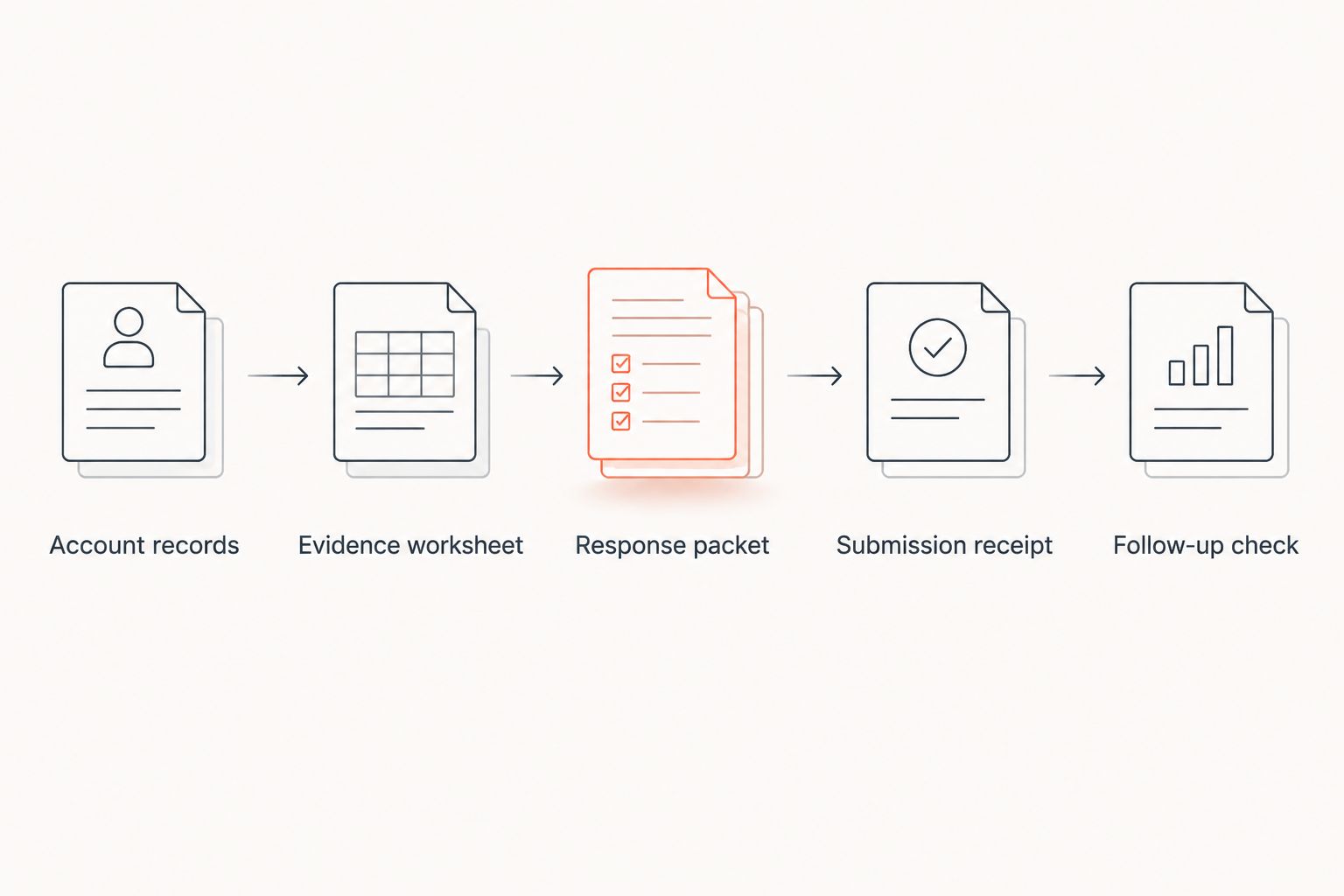
Account records
- Identify the tax period. Read the notice’s proposed changes and mark each payer, income category, and disputed amount. Keep the response date visible while gathering documents.
- Sign in securely. Reach the IRS Individual Online Account through the official IRS website. Avoid sign-in links in unsolicited messages, and never send account credentials to a preparer or representative.
- Find the transcript area. Open the account’s tax-records section and request records for the tax period named in the notice. Follow the labels displayed in your account rather than looking for a CP2000 integration setting.
- Download relevant transcripts. A wage and income transcript shows information returns reported to the IRS. A tax return transcript helps identify information from the original return; a tax account transcript helps review account activity and adjustments.
- Save the filed return separately. Preserve the return, schedules, and attachments actually filed. A transcript is not a complete replacement for that package.
Expected result: You have records for the correct tax period and can identify the information the IRS compared with your return. You have not yet answered the notice.
For your 2026 response file, keep original downloads unchanged and annotate separate working copies. That distinction prevents your notes from being mistaken for information printed by the IRS.
Evidence worksheet
- Create a mismatch worksheet. Use these column headings: payer, notice item, return location, supporting document, and explanation. Give every proposed change its own row.
- Match the payer record. Compare the notice with the relevant Form W-2, Form 1099, or other statement. Check taxpayer identification details and whether a corrected statement exists.
- Trace the return entry. Find where the item was reported, including schedules or business income totals. Identify whether the issue is omitted income, different classification, duplication, or missing supporting information.
- Gather primary evidence. Use payer statements, brokerage records, receipts, or other records that directly support your explanation. A transcript confirms what was reported to the IRS; it does not independently prove that a payer’s figure is correct.
- Write the correction plainly. Explain what the notice proposes, what you believe is correct, and which attachment supports your position. Avoid sending unrelated records that obscure the disputed item.
Expected result: Each disputed item has a specific explanation and supporting evidence. Any item you agree with is identified separately.
Investment sales deserve particular attention. A Form 1099-B can report proceeds without complete cost-basis information, so gross proceeds alone do not establish the taxable gain. Use the relevant brokerage records and return schedules to explain the calculation rather than accepting the proposed income adjustment without checking it.
Prepare and submit your response
Response packet
- Choose your position. Follow the notice instructions for agreement, disagreement, or agreement with only some changes. Do not sign an agreement statement while intending to dispute the proposed adjustment.
- Complete the notice’s response form. Supply the requested identifying information and signatures. For a joint return, follow the notice’s signature instructions for both taxpayers.
- Attach your explanation and evidence. Refer to each notice item and identify the document supporting it. Send copies, not irreplaceable originals, and retain a complete copy of the packet.
- Check the arithmetic and scope. Confirm that your explanation addresses related calculations affected by the income change. If the proposed adjustment affects deductions or credits, include that issue in your review.
- Choose the authorized submission route. Use the response address, fax instructions, or upload instructions supplied with the notice. Do not assume that uploading elsewhere in your online account reaches the CP2000 unit.
Expected result: Your packet states your position, includes the required response form, and supports disputed items without relying on an unexplained stack of transcripts.
The Rutter Organization is best suited to readers seeking tax resolution services rather than a self-service filing tool. Professional assistance still requires your records, authorization where applicable, and attention to the notice deadline; hiring help does not itself submit a response.
If you need to decide between handling the notice yourself and seeking assistance, review these options for handling an IRS CP2000 notice.
Submission receipt
The correct channel is the one authorized for your notice. These are response routes, not interchangeable account features.
| Response route | Best for | Advantage | Limitation |
|---|---|---|---|
| IRS Document Upload Tool, when authorized | Taxpayers whose notice supplies upload instructions | Electronic document delivery with a confirmation to retain | An upload does not establish agreement with your explanation |
| Mail to the notice’s response address | Taxpayers following the paper-response instructions | Preserves a complete signed paper packet | Requires mailing time and separate proof of delivery |
| Fax, when the notice permits it | Taxpayers with an authorized fax number and transmission access | Provides a transmission record | A successful transmission does not establish that every page is readable |
- Submit the complete packet. If using the Document Upload Tool, follow the notice’s instructions and the tool’s current file requirements. Do not assume the account sign-in process replaces any notice-specific identification requirements.
- Save the submission receipt. Retain the upload confirmation, fax transmission report, or mailing and delivery records alongside the exact documents sent.
- Record the submission details. Note the date, channel, notice reference, and documents included. Preserve any confirmation identifier exactly as issued.
- Schedule a follow-up check. Follow the acknowledgement or notice instructions. An unchanged online balance immediately after submission is not a reason to send duplicate packets.
Expected result: You can show what you submitted, when you submitted it, and which authorized channel you used. Submission proof establishes delivery activity, not acceptance of your position.
When a payer corrects an information return
A corrected payer statement creates a related workflow, not an automatic update to your CP2000 response. In 2026, keep the same discipline: connect the correction to the specific notice item and preserve evidence of your response.
- Obtain the correction. Ask the payer to investigate the error and provide the corrected information return when appropriate. Keep relevant correspondence.
- Reconcile the change. Compare the corrected statement with the original, your filed return, and the notice. Explain which proposed adjustment the correction affects.
- Respond before the deadline. If the corrected statement is still pending, explain the issue and contact the IRS using the notice instructions about additional time. Do not wait silently for the payer’s correction.
- Supplement only as instructed. If you already responded, use the notice contact instructions to determine how to provide additional evidence. Reference the earlier submission so the documents can be associated with the same matter.
Expected result: The correction becomes evidence within a documented response rather than an assumption that the IRS will resolve the mismatch automatically.
Troubleshooting
You cannot access your online account
Protect the response deadline first. Use your filed return, payer statements, and the notice while resolving identity verification or account-access problems. Contact the number printed on the notice if you need help understanding the response requirements or requesting time.
The transcript does not show the expected correction
Do not substitute an incomplete transcript for your actual evidence. Use the corrected payer statement and explain the discrepancy. A transcript downloaded in 2026 can concern a different tax period; confirm the period before drawing conclusions.
The upload fails or provides no confirmation
Do not treat an attempted upload as a completed submission. Check the tool’s displayed file requirements, confirm that documents are readable, and retry only after addressing the error. If the problem persists, use another channel authorized by the notice or contact the notice’s IRS unit before the deadline.
You already paid but have not answered
Payment and response are separate actions. Follow the notice’s response instructions even if you made a payment. Keep the payment confirmation separate from your submission receipt, and explain any disagreement rather than assuming payment communicates your position.
You submitted twice or sent incomplete evidence
Organize the record before sending anything else. List each submission date and its contents, then contact the notice’s IRS unit for instructions on supplying missing material. Repeated unexplained packets make the correspondence harder to follow.
Customize your workflow
Turn the response packet into a reusable notice file: notice, filed return, payer documents, worksheet, signed response, supporting evidence, and delivery proof. Keep credentials outside that file and restrict access to sensitive taxpayer information.
The Rutter Organization’s tax resolution services are relevant when you want professional help evaluating the proposed adjustment. Ask what records are needed and who is responsible for submitting the response; do not assume that an initial conversation transfers that responsibility.
For your 2026 checklist, separate resolving the proposed tax from arranging payment. Establish the correct liability first; evaluate collection options against that amount rather than treating a payment arrangement as a dispute response.
FAQ
Can I connect my IRS online account directly to a CP2000 response?
Your IRS online account does not automatically attach transcripts to a CP2000 response or submit a dispute. Download relevant records, prepare your response, and use the submission channel authorized by your notice.
Is an IRS CP2000 notice a bill?
An IRS CP2000 notice is a proposal to change your return, not a bill. Review the proposed changes and respond according to the notice, whether you agree or disagree.
Can I respond to a CP2000 notice online?
Use an online response route when your notice authorizes it and supplies the applicable instructions. Access to an IRS online account alone does not establish that your CP2000 response can be submitted through that account.
Which IRS transcript helps explain a CP2000 notice?
A wage and income transcript helps identify information returns reported to the IRS for the relevant tax period. Compare it with your filed return and payer records; tax return and tax account transcripts serve different supporting purposes.
Should I file Form 1040-X instead of answering the notice?
Do not substitute Form 1040-X for the CP2000 response. Follow the notice instructions; if an amended return is needed for additional changes, follow the IRS instructions for submitting it with your response.
What if I disagree with only part of the CP2000 notice?
Identify the changes you accept and explain each change you dispute. Follow the notice’s response instructions and attach evidence supporting your calculations.
Does an upload confirmation mean the IRS accepted my explanation?
An upload confirmation establishes submission activity, not acceptance of your explanation. Keep the confirmation and complete packet, then follow subsequent IRS correspondence.
One last thing
The most useful connection is between each proposed change and the evidence that answers it. Before sending your response, ask someone unfamiliar with the issue to follow a disputed item from the notice to your explanation and its supporting document. If that path is unclear, revise the packet—not the account settings.