

Instead of manually rebuilding spreadsheets for business tax planning, turn your QuickBooks records into a repeatable workflow: reconcile accounts, export consistent reports, and document tax decisions with your adviser. Use this 2026 process to separate bookkeeping corrections from planning opportunities before either reaches a tax return.
- Business tax planning starts with reconciled QuickBooks records, not a list of deductions.
- Export Profit and Loss and Balance Sheet reports using consistent dates and accounting methods.
- Keep supporting documents and tax adjustments separate from ordinary bookkeeping changes.
- Rutter Organization provides tax resolution services; QuickBooks organizes records but does not resolve tax obligations.
Why this matters
Your bank balance is not taxable profit, and your QuickBooks profit is not automatically taxable income. Loan proceeds, owner transfers, asset purchases, and tax adjustments explain why these figures differ.
A useful 2026 plan connects recorded activity to decisions you can still make. An unreconciled ledger does the opposite: it turns missing transactions and classification errors into misleading projections.
Start with documentation practices for an IRS audit. Evidence belongs beside the transaction throughout the year, not in a separate search after a notice arrives.
This is a record-to-review workflow, not an automatic connection between QuickBooks and a tax filing system. You remain responsible for approving classifications and confirming tax treatment with a qualified adviser.
Before you start
- Access and source records: Have QuickBooks access that permits reconciliation and report exports, plus bank statements, credit card statements, receipts, loan statements, and payroll records where applicable.
- Tax context: Gather the last filed business return, the entity's tax classification, estimated-payment records, and any tax notices. Your bookkeeping alone does not establish your filing obligations.
- The gotcha: QuickBooks report totals change when you switch cash versus accrual reporting or edit transactions in an earlier period. Agree on the reporting basis and review cutoff before exporting anything.
The instructions below use standard QuickBooks Online report names and controls. Navigation differs between layouts and account permissions; use the named report or function rather than assuming a sidebar location. Do not change a reconciled transaction or closed period just to make a report look right.
Configuration unit: clean source records
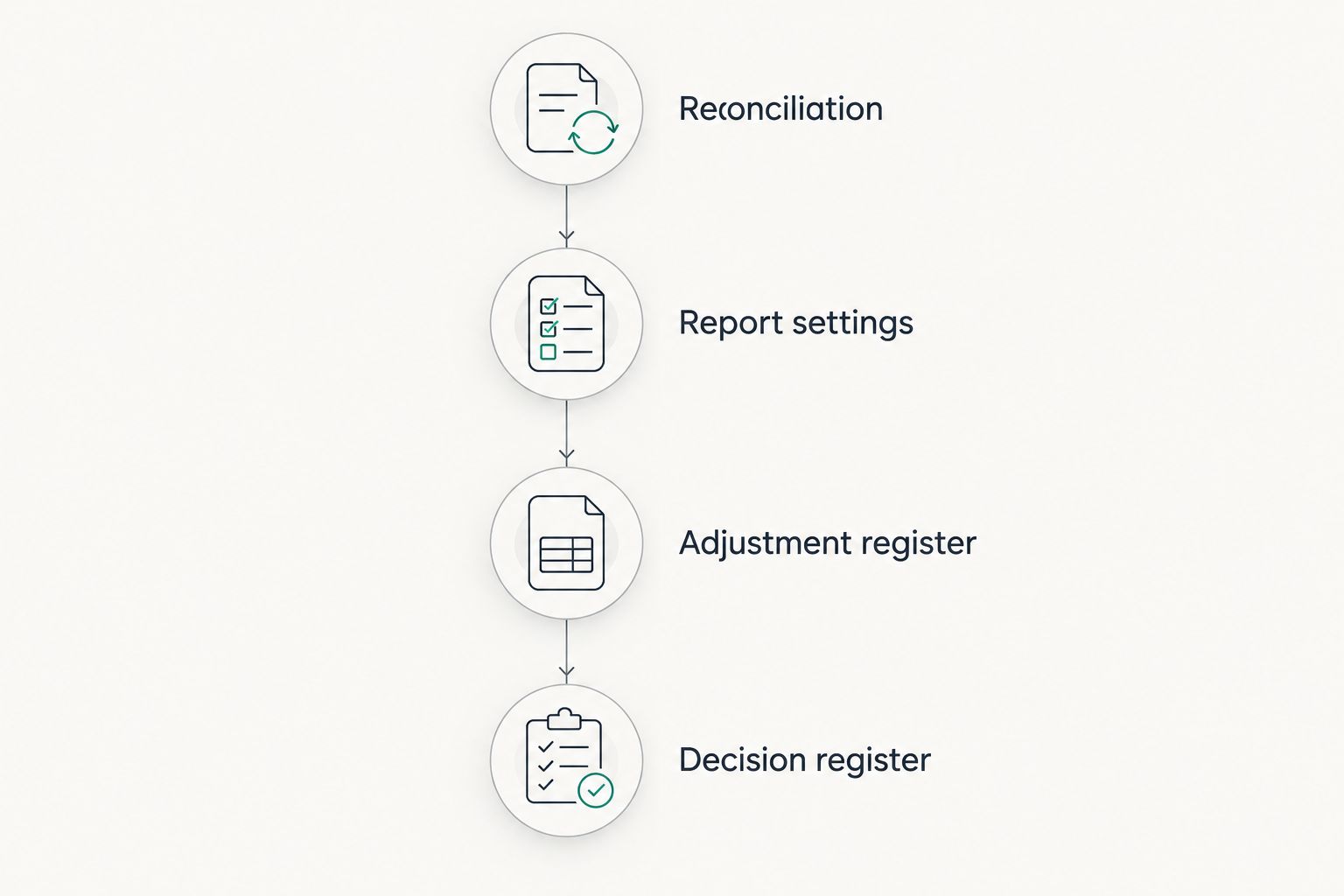
Reconciliation
- Collect statements covering the entire review period, including accounts that had little activity. Include business transactions paid personally in a separate review list.
- Open Reconcile for each bank and credit card account. Enter the statement's ending balance and ending date, then compare transactions against that statement.
- Investigate unmatched items, duplicate entries, missing deposits, and unexplained opening balances. A downloaded transaction is not proof that its category or business purpose is correct.
- Finish only when the reconciliation difference is zero and outstanding items have explanations. Save the reconciliation report with its supporting statement.
Expected result: Each reviewed account agrees with its statement, and remaining outstanding transactions are identifiable rather than unexplained balancing entries.
Classification review
- Review transfers, owner contributions, owner draws, loan payments, equipment purchases, and payroll entries. Separate loan principal from interest rather than treating the entire payment as an expense.
- Check that credit card payments are transfers or liability payments rather than a second recording of the underlying purchases.
- Flag transactions with unclear business purposes or missing evidence. Give each exception an owner and a question to resolve; do not assign a deductible category merely to clear the list.
Expected result: Ordinary operating activity is separated from financing, owner activity, and items needing tax review.
A transaction can be correctly reconciled and incorrectly categorized. Reconciliation proves agreement with a statement; classification determines where the activity appears in your accounts. Both checks are necessary.
Configuration unit: consistent report package
Report settings
- Open Reports and select Profit and Loss. Set Report period to the review dates and Accounting method to the basis agreed with your adviser, then select Run report.
- Open Balance Sheet and use the review period's ending date. Keep the accounting method consistent with the Profit and Loss report.
- Export both reports using the report's export control. Save the dates, accounting method, export date, and reconciliation status alongside the files.
- Include account-level transaction detail for balances that need explanation. Add payroll summaries, fixed-asset records, and receivable or payable detail when relevant to the business.
Expected result: Your adviser receives a Profit and Loss report and Balance Sheet that describe the same business, reporting basis, and cutoff.
For a full-year 2026 review, the calendar-year period runs from January 1 through December 31, 2026. Use your actual fiscal year if it differs; do not force a calendar-year view onto a fiscal-year business.
Report selection
Best for a first planning review: use the Profit and Loss report and Balance Sheet together. Either report alone leaves important questions unanswered.
| Record or report | Best for | Strength | Limitation |
|---|---|---|---|
| Profit and Loss | Reviewing recorded income and expenses | Shows operating results over a period | Does not show every asset, liability, or tax adjustment |
| Balance Sheet | Reviewing financial position at a cutoff | Shows recorded assets, liabilities, and equity | Does not explain the business purpose of every balance |
| Bank statement | Verifying account activity | Provides an external record of cash movements | Does not establish deductibility or capture all noncash activity |
| Tax adjustment schedule | Connecting books to a tax projection | Separates proposed tax treatment from recorded activity | Requires review and supporting records |
Report exports are snapshots. Preserve the original files so a later correction does not erase the information used for an earlier decision.
Configuration unit: tax review and decisions
Adjustment register
- Create an adjustment register outside the original report files. Use these column labels: Item, Book treatment, Tax question, Supporting record, Decision owner, and Status. These are your worksheet headings, not QuickBooks controls.
- Enter items needing review: equipment purchases, mixed personal and business expenses, meals, vehicle use, retirement contributions, depreciation, and owner compensation where applicable.
- Attach evidence or identify where it is stored. A merchant name and dollar amount do not explain the business purpose of an expense.
- Ask your adviser to distinguish bookkeeping corrections from tax-only adjustments. Record approved bookkeeping corrections in QuickBooks; retain tax-only adjustments in the tax workpapers unless your adviser directs otherwise.
Expected result: Every proposed adjustment has an explanation and evidence, without turning the accounting ledger into an unsupported tax estimate.
Decision register
- Build a projection from reviewed year-to-date results, expected remaining activity, and relevant owner-level information. Include estimated payments already made; a payment record is different from an expense entry.
- Ask which decisions remain open: purchase timing, retirement contributions, compensation, entity treatment, and estimated payments. Confirm eligibility, deadlines, and cash consequences before acting.
- Assign each approved action a responsible person, due date, required evidence, and completion status. Distinguish a proposed transaction from one actually completed.
Expected result: Your 2026 business tax planning review ends with approved actions, not a collection of possible deductions.
Do not buy something solely because it produces a deduction. A deduction reduces the income subject to tax under applicable rules; it does not make an unnecessary purchase economically beneficial.
Second workflow: refresh the plan after records change
Best for an ongoing planning cycle: refresh the package after a completed review period or a material business change. A major equipment purchase, payroll change, new financing arrangement, or corrected revenue entry deserves a fresh look rather than waiting for filing season.
- Identify what changed and which accounting period it affects. Reconcile new activity before treating the revised totals as reliable.
- Run the same reports with the same accounting method. Change the ending date deliberately, and record that change in the package notes.
- Compare the new package with the prior version. Separate normal business activity from corrections to previously reviewed periods.
- Update the adjustment and decision registers. Ask your adviser whether the change affects projected liability, estimated payments, or an earlier recommendation.
Expected result: You can explain why the plan changed, rather than merely showing a different profit figure.
Keep a recurring monthly review on your calendar during 2026. This is a suggested operating routine, not a tax filing deadline; statutory deadlines depend on the taxpayer, entity, payment, and election involved.
A recurring export is useful for consistency, but it cannot approve tax treatment. Keep human review between the report refresh and any payment, election, or filing decision.
Troubleshooting
Profit changes when you switch the accounting method
Cash and accrual reports recognize activity differently. Compare the report dates and Accounting method, then review unpaid invoices and bills that explain the difference.
Fix: Return to the agreed reporting basis and identify the timing differences. Do not delete transactions to force both reports to match.
A reconciled account no longer agrees with its statement
An edited or deleted transaction from an earlier period can disturb the reconciliation. Review the reconciliation report and relevant transaction history before changing the opening balance.
Fix: Identify the original change and have the correction reviewed. Avoid an unexplained adjustment whose only purpose is eliminating the difference.
Credit card expenses appear twice
This happens when purchases are recorded as expenses and the card payment is also classified as an expense. Downloaded transactions can also duplicate entries already recorded elsewhere.
Fix: Review both sides of the payment, match existing transactions where appropriate, and retain the underlying purchase entries.
Cash increased, but the income report does not explain it
Borrowing, owner contributions, and transfers can increase a bank balance without being sales revenue. Conversely, an accrual report can show income before the customer pays.
Fix: Trace the movement through the bank account and Balance Sheet. Correct the classification only after identifying its source.
The tax estimate and QuickBooks profit differ
Tax treatment can differ from book treatment, and an owner's broader tax position can affect the final projection. A difference is a question to reconcile, not automatic evidence of an error.
Fix: Request a written bridge from book profit to the tax projection, identifying adjustments and assumptions.
Customize your workflow
Keep separate records for separate legal entities. If you track properties, locations, or business lines within an entity, agree on the reporting structure before adding categories or changing historical entries.
Use business entity structures for tax savings to frame questions about entity treatment. A bookkeeping setting does not create a tax election or change a legal entity.
Rutter Organization is best for readers seeking tax resolution services, not a QuickBooks replacement. Its stated services include tax resolution, while this workflow organizes records for review. Do not assume software implementation, return preparation, or a particular planning engagement is included without confirming the scope.
If your records reveal unpaid obligations or unfiled returns, address that compliance problem alongside current-year planning. Rutter Organization's tax resolution services concern a different need from correcting transaction categories; clean books support the discussion but do not settle a tax debt.
FAQ
Can QuickBooks do business tax planning for me?
QuickBooks supplies accounting records and reports, but those reports do not by themselves determine tax treatment. Business tax planning also requires review of eligibility, adjustments, deadlines, and the taxpayer's circumstances.
Which QuickBooks reports should I send my tax adviser?
Start with the Profit and Loss report and Balance Sheet using consistent dates and an agreed accounting method. Include reconciliation reports, supporting statements, and detail for balances that need explanation.
Should I use cash or accrual reports for tax planning?
Use the reporting basis agreed with your tax adviser for the review. Switching a QuickBooks report between cash and accrual does not itself change the tax accounting method you are authorized to use.
Why is my QuickBooks profit different from my bank balance?
Profit and bank balances measure different things. Loans, owner transfers, unpaid invoices, asset purchases, and liability payments can explain differences between recorded operating results and cash.
How often should I update my 2026 tax plan?
Review your records monthly and refresh the projection after a material change. Confirm payment and election deadlines separately; the suggested review schedule is not a statutory deadline.
Should I enter every tax adjustment in QuickBooks?
No; distinguish bookkeeping corrections from tax-only adjustments with your adviser. Keep tax workpapers that explain differences rather than changing accurate accounting entries simply to match a tax projection.
Can Rutter Organization replace QuickBooks?
Rutter Organization is an enterprise offering tax resolution services, not bookkeeping software. Keep the accounting system for transaction records and confirm the scope of any professional engagement separately.
One last thing
Preserve the version of the books that supported each decision. Save the exported reports, assumptions, unresolved questions, and approved actions together before making later corrections.
The most useful handoff is not a polished profit figure. It is a traceable package that explains what the numbers mean and what still requires a decision.